
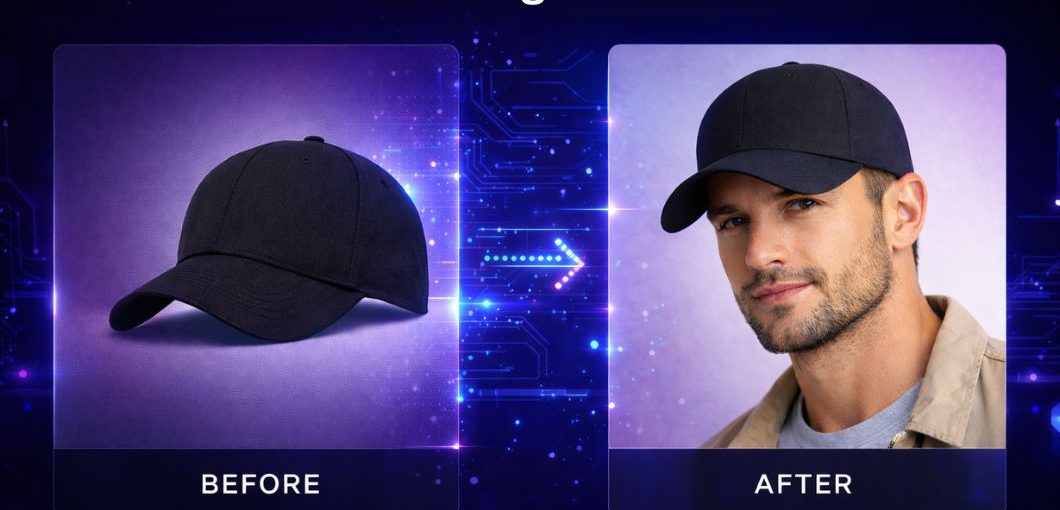
TrogoAI now includes image enhancement tools that help you create professional product images without external software or photography services.
This update introduces three capabilities: custom image generation, quality upscaling, and background removal.
Custom AI Image Generation
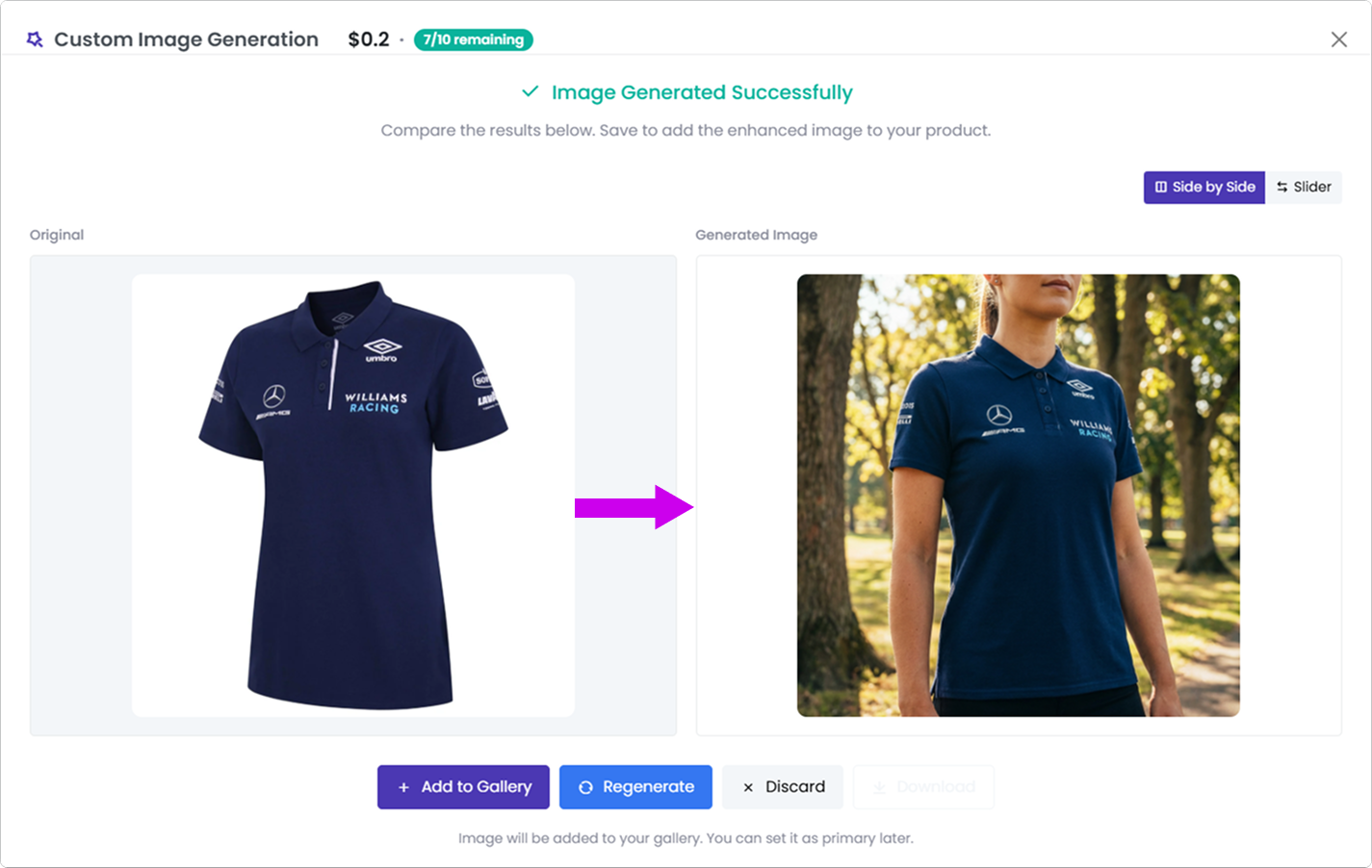
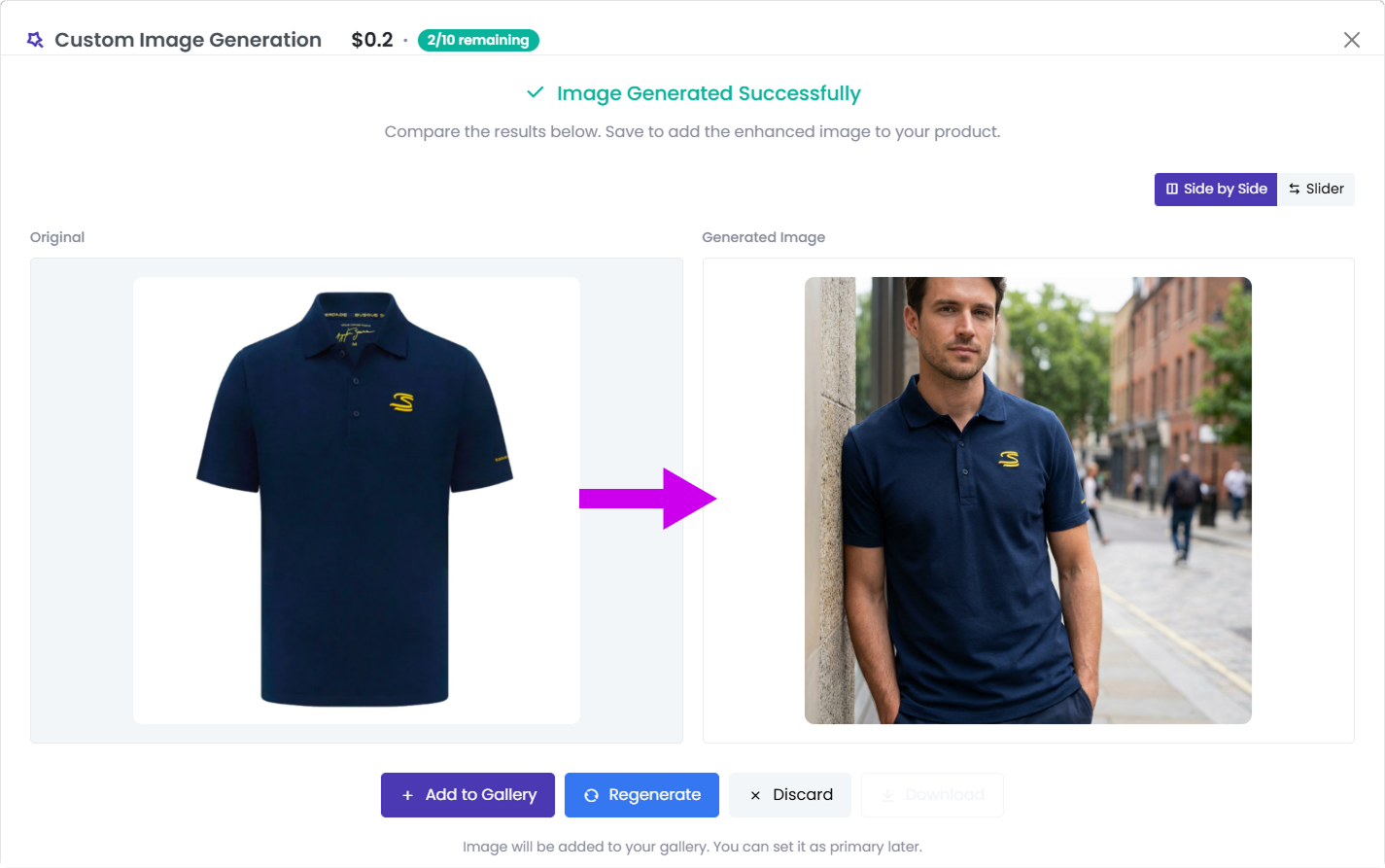
Transform product photos into lifestyle images by describing the scene you want.
Upload a product image and provide instructions such as “Show this hat on a fan at a football stadium” or “Display this jersey on a player on the pitch.” The system generates a new image placing your product in the described context while maintaining product accuracy.
This is useful for creating marketing materials, social media content, or contextual product shots without arranging photo shoots.
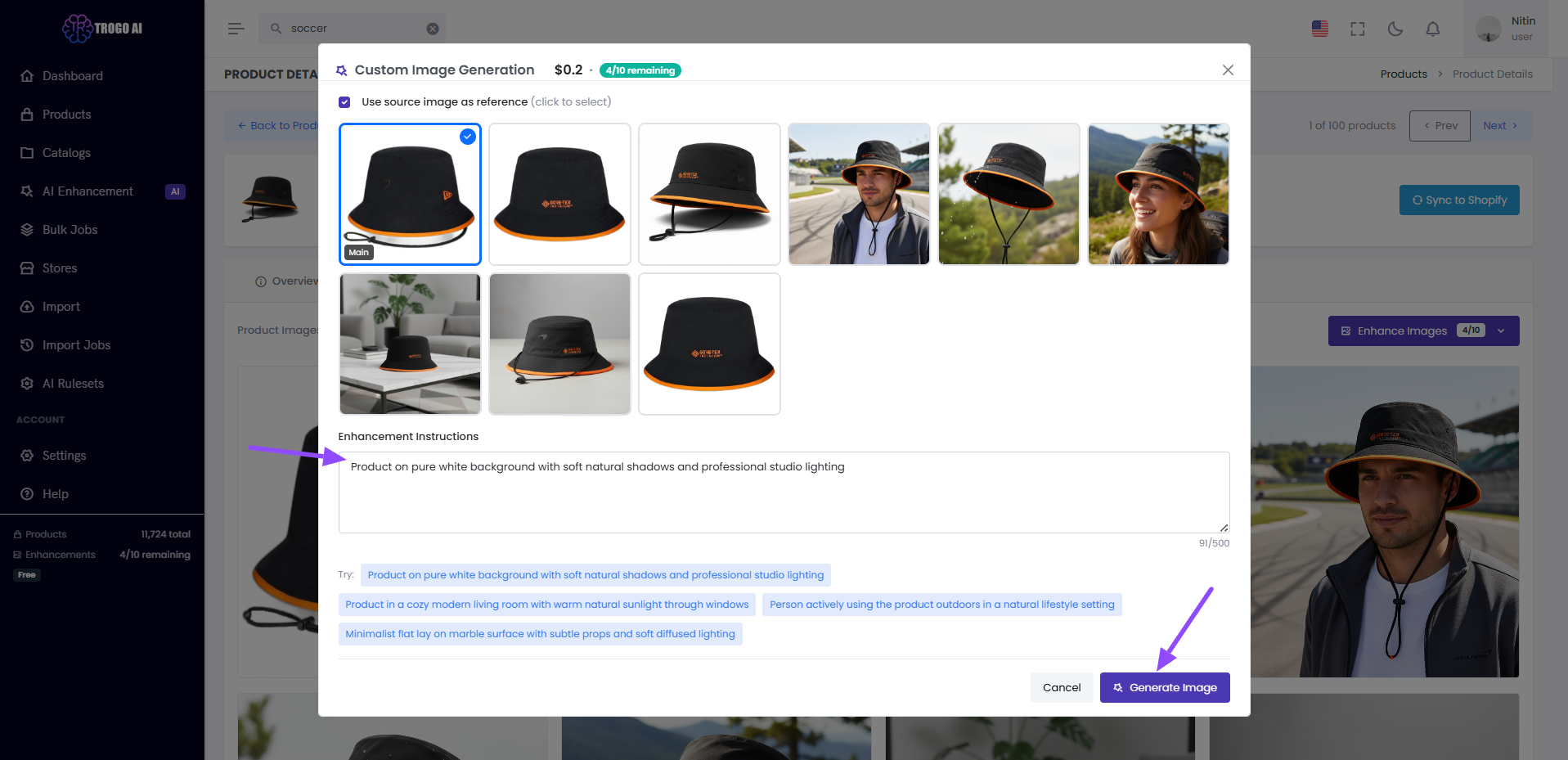
Enter your scene description and select a source image
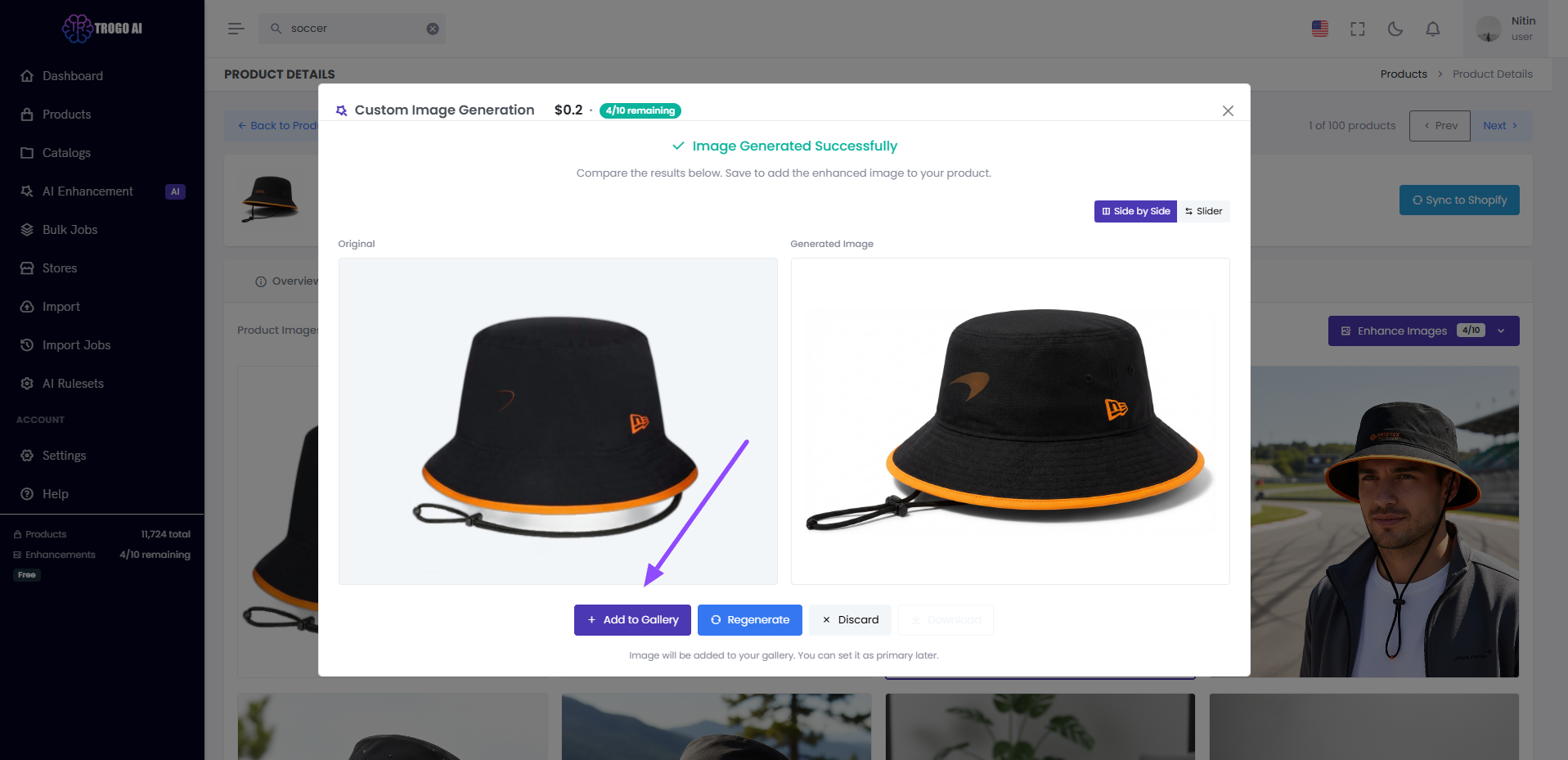
Review the generated image and choose to add, regenerate, or discard
Quality Enhancement
Improve low-resolution product images with AI upscaling.
Select an image and choose your upscale factor: 2x for minor improvements, 4x for typical supplier photos, or 8x for very low-resolution sources. The system enhances resolution while reducing noise and improving clarity. A face enhancement option is available for images containing people.
This addresses the common problem of receiving inadequate images from suppliers that are too small for product listings.
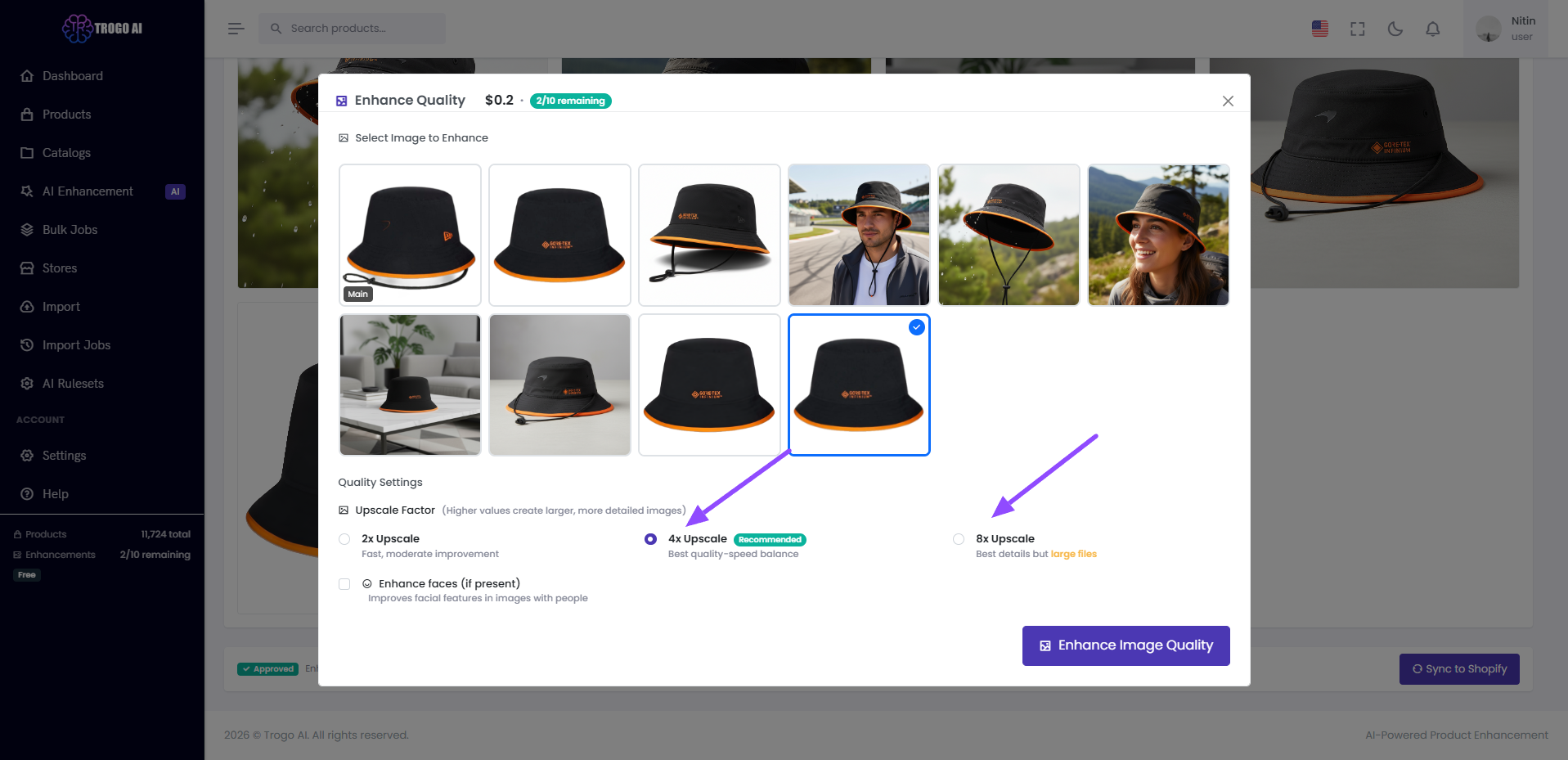
Select upscale factor and optional face enhancement
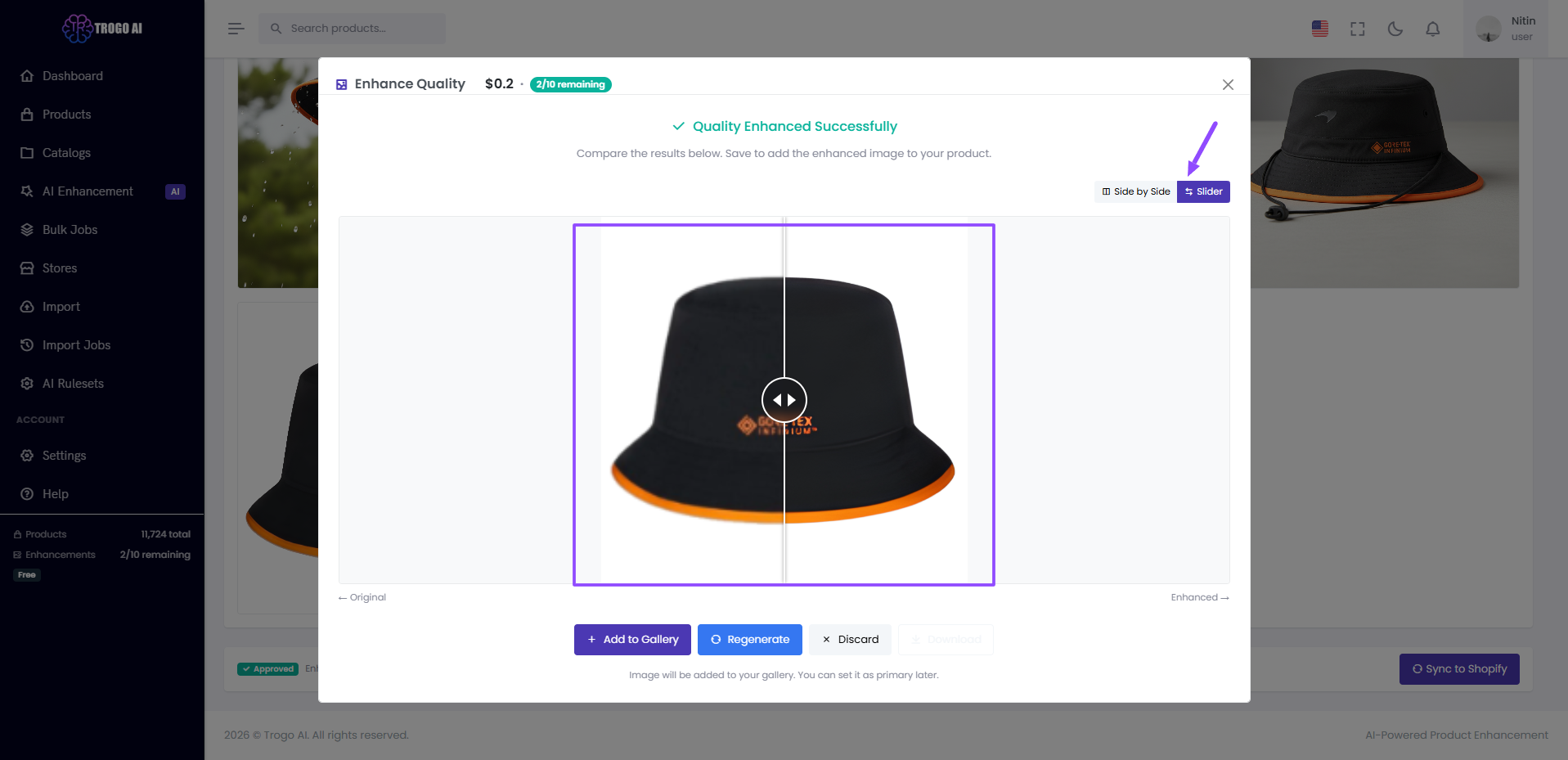
Compare original and enhanced versions
Background Removal
Remove backgrounds from product images with a single click.
The system detects product edges and creates a clean transparent PNG. This works well for products photographed in non-studio environments where you need consistent, professional backgrounds for your listings.
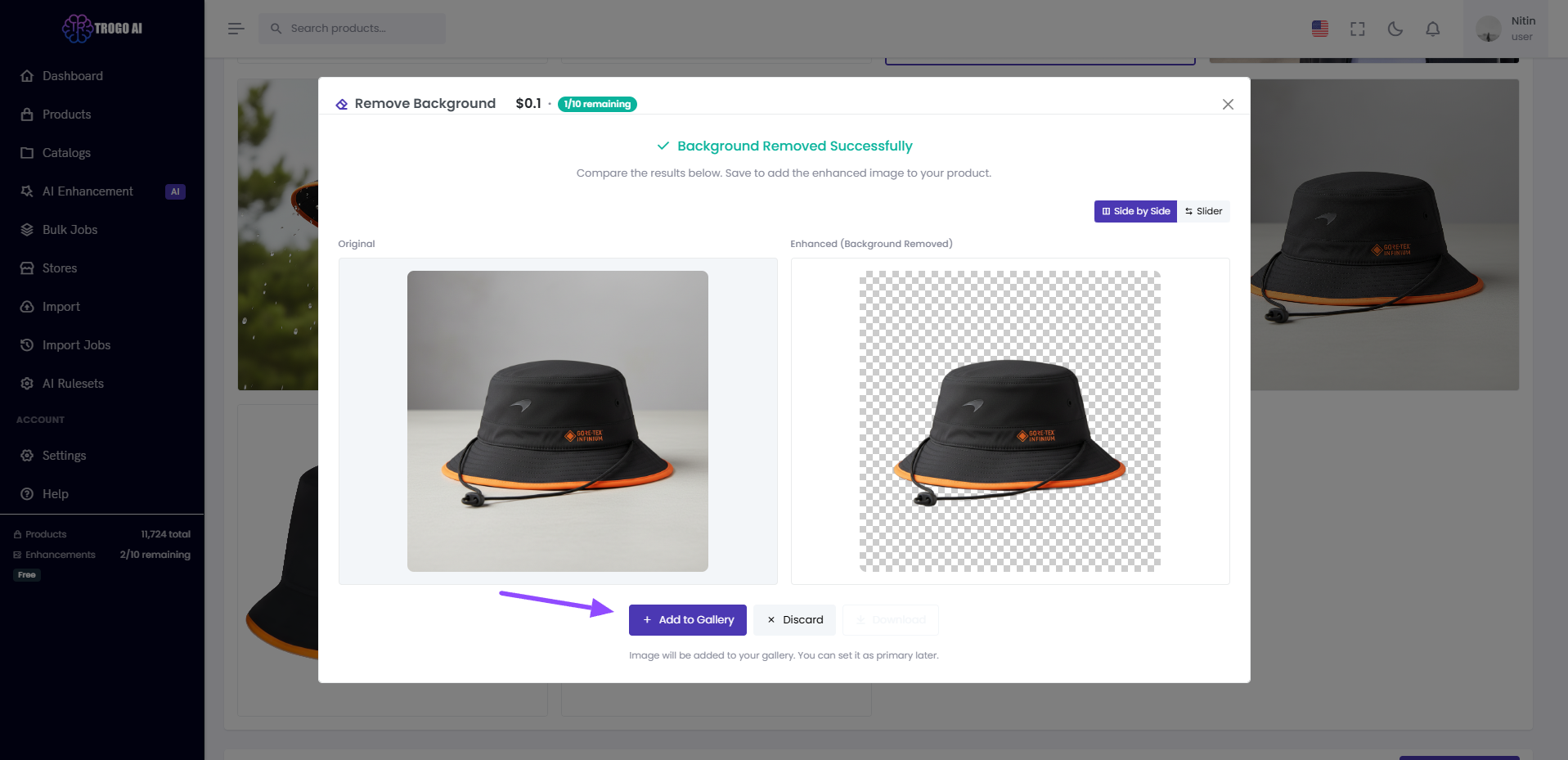
Original image with background removed
Review and Apply
After each enhancement, you see a side-by-side comparison of the original and enhanced images.
From this view, you can add the enhanced image to your product gallery, discard it, or regenerate it with different settings. Original images are always preserved. Enhanced images are added alongside them, and you choose which becomes your primary product photo.
Job History
Track all enhancement activity in the Image Enhancement Jobs tab.
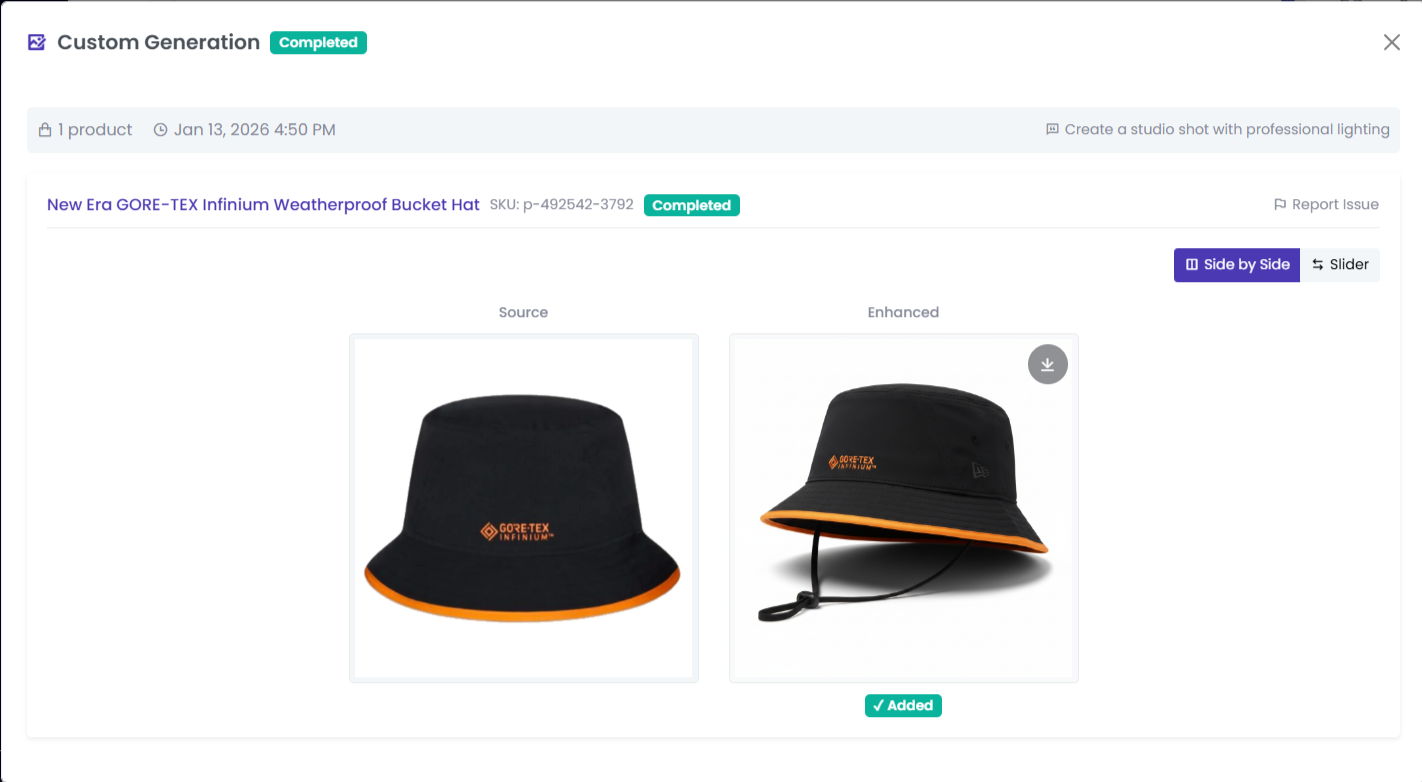
Each job shows the enhancement type, status, products processed, and results. Click any job to view source images, generated results, and approval status. This provides a complete record of all image modifications.
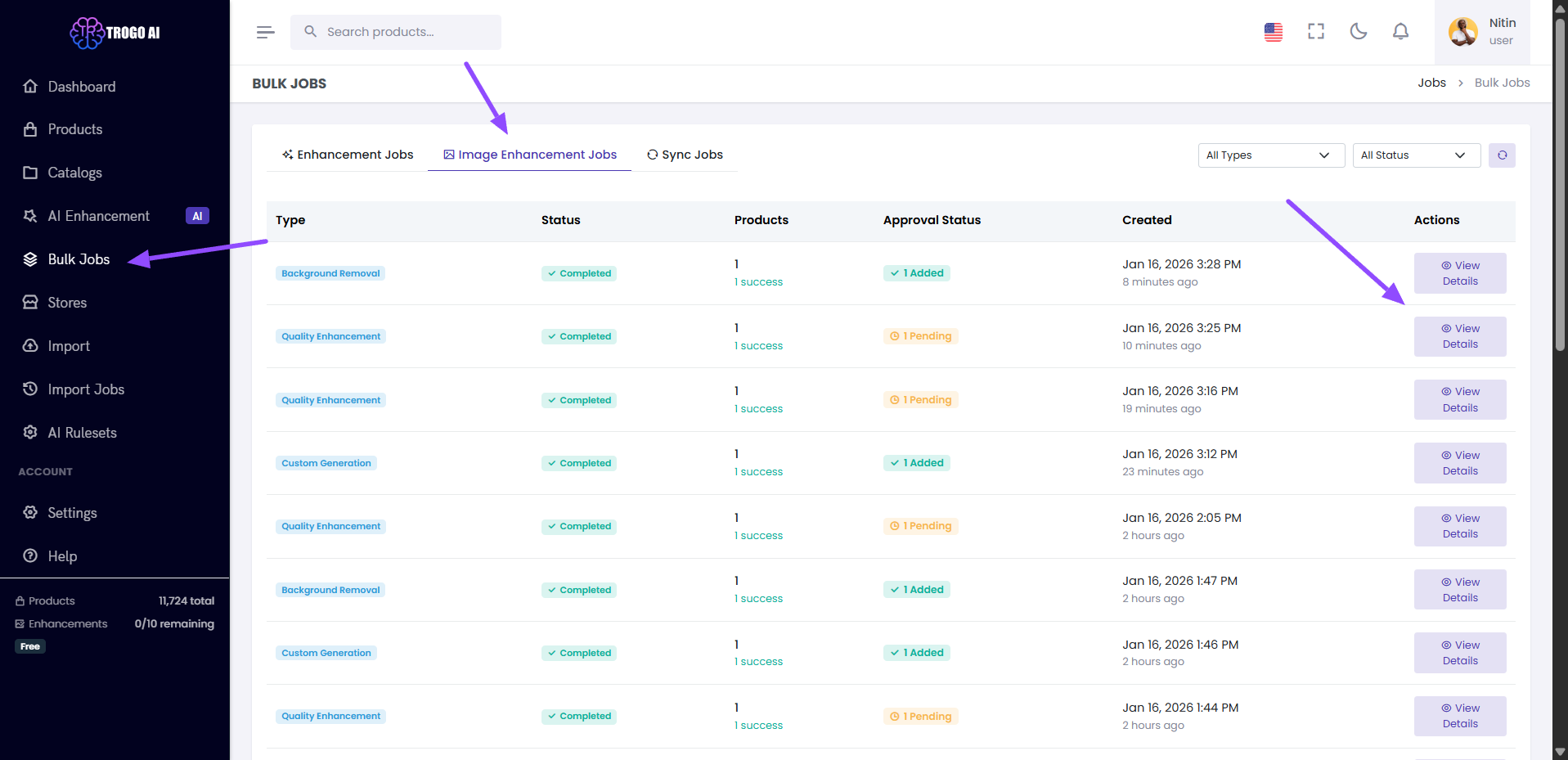
View all enhancement jobs with status and details
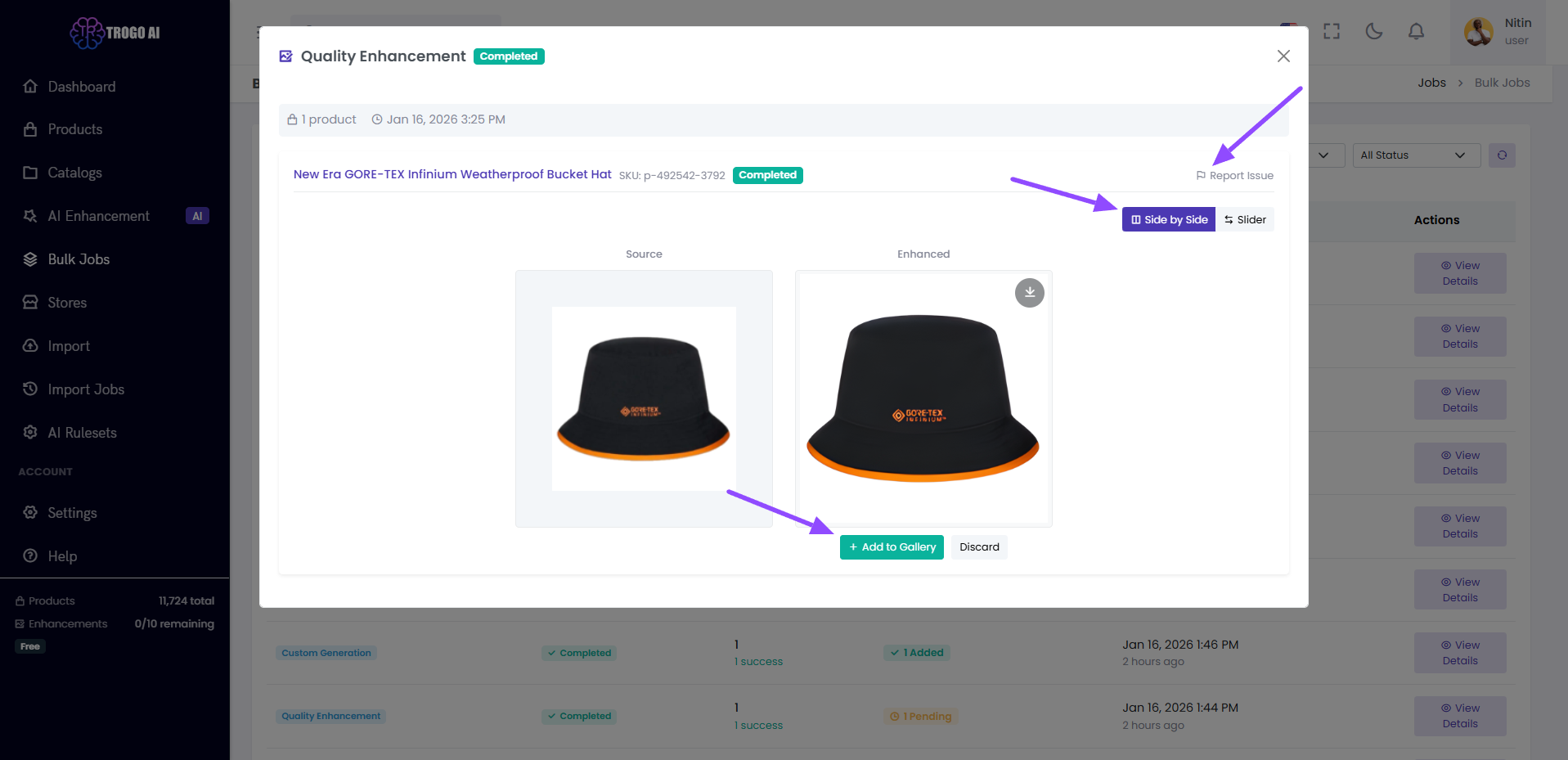
Job detail showing source and enhanced images
Feedback and Regeneration
If a result doesn’t meet your requirements, you can regenerate with adjusted settings or report issues.
The feedback system accepts reports for incorrect product appearance, poor quality, or other concerns. This information is used to improve the enhancement system.
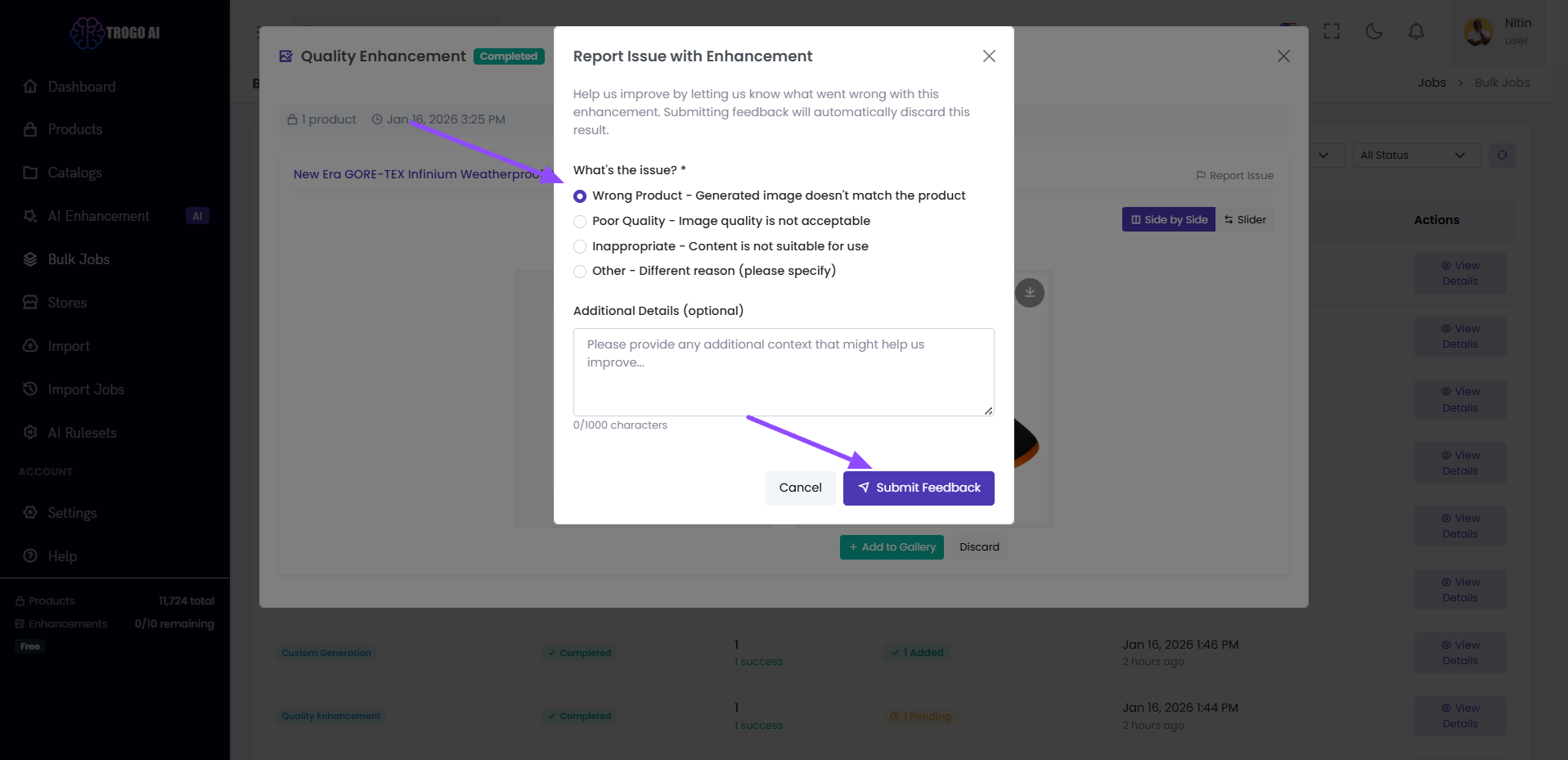
Report issues to help improve results
Bonus
- Generous daily limits for you to try out
- Original images are never modified or replaced
- Enhancement processing runs in the background
- Usage remaining is displayed in the interface
Coming Soon
- Shopify image sync
- Bulk enhancement for multiple products
- Image search for sourcing product photos
Get Started
Navigate to any product in your dashboard, select an image, and choose an enhancement option from the dropdown menu.
Leave A Comment